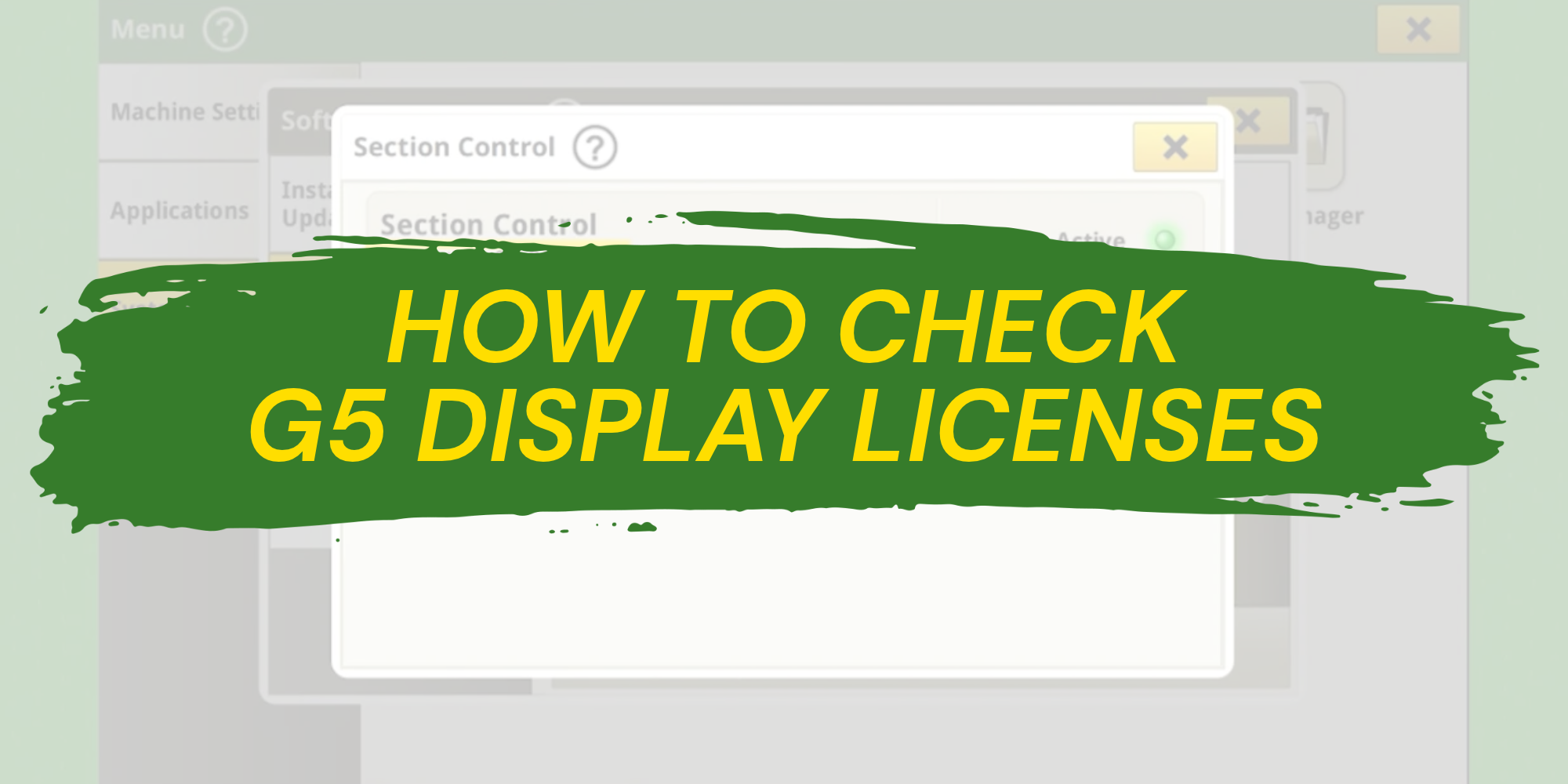
To check licences on a John Deere G5 display, open Menu → System → Software Manager → Licenses. Select the licence you want to review to see its features, status and activation date.
If a precision agriculture feature is unavailable, checking its licence is a useful first step. This guide follows John Deere Support’s G5 display walkthrough, with links to the relevant sections of the video.
Where do you find G5 display licences?
- Open Menu on the display.
- Select System, then Software Manager.
- Open the Licenses section and choose a licence.
Watch the licence-status walkthrough, starting at 0:08.
How do you check licence status and timing?
The selected licence lists its features, current status and activation date. For a time-based licence, use its activation date together with its term to work out when it ends.
| Status | What to do |
|---|---|
| Active | Confirm this is the licence required for the feature you want to use. |
| Expired | The feature is unavailable under the expired licence. Contact your dealer about the next steps. |
| Issue or Start Date Pending | The licence needs dealer attention before you can use the feature. |
How do you enter an activation code?
From the licence section, select Details, then Enter Code. Type the activation code and confirm with OK.
Watch activation-code entry, starting at 0:43.
How do Online Activations work?
Online Activations requires a wireless connection. The display automatically checks for current licences when turned on. You can also select Online Activations to run another check.
Watch Online Activations, starting at 0:58.
What should you have ready when contacting support?
To help our team understand what you are seeing, have the following ready:
- Your display model and software version, if known.
- The feature you are trying to use.
- The exact licence name and status.
- A clear photo of the relevant screen and any message.
This preparation checklist is our recommendation for making a support conversation more useful. Menu appearance may differ from the video if your display or software differs.
Watch John Deere’s G5 licence walkthrough
Source: John Deere Support, How to Check G5 Display Licenses, published October 2, 2026. This written guide summarizes the video.
G5 display support in Petrolia and Glencoe
Need help working through a licence message? Contact Podolinsky Equipment’s Precision Ag team for support through our Petrolia and Glencoe dealerships. Share the status shown on your display so we can help you identify the next step.
Precision Ag support: 226-781-3890